
How to import LUTs
How to import LUTs
How to Import 2|Operation with a Camera
-
1. Select a CP file (C1-C20) from [Select CP File] in the [Custom Picture] menu, and then choose [Edit CP File].
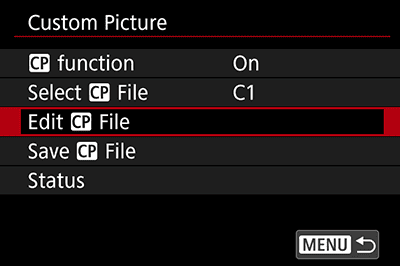
-
2. Select [Canon Log 3/C.Gamut] via the [Gamma/Color Space] menu, and then choose [Look File Setup].*
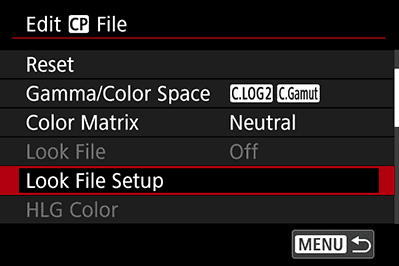
-
3.Choose [Register].
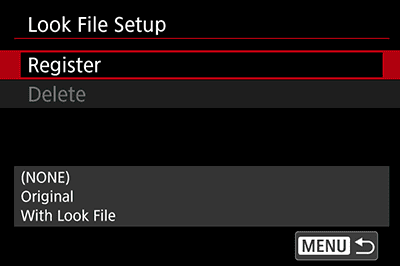
-
4. Select a Look File.
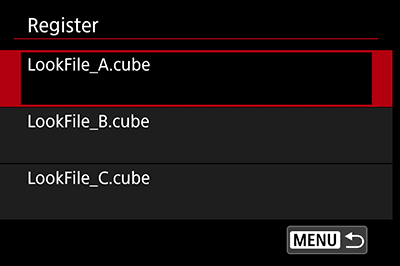
-
5. Select SDR BT.709 in Gamma/Color Space after applying the LUT.
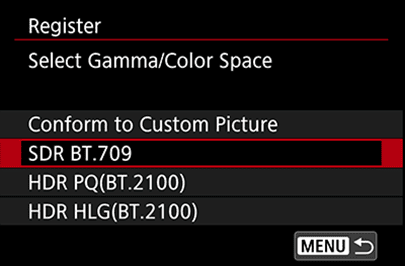
-
6.Make sure that the name of the registered LUT is displayed in the [Look File Setup] window.
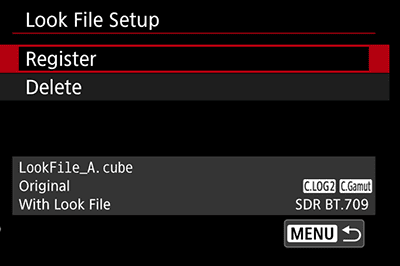
- 7. Verify that the chosen LUT is applied to the Live View image, then start shooting normally.
- * When registering LUTs to a CP file, be sure to cancel file protection before registering.